Windows 7 Docking Dialog Size (setting off automatic dialog arragement)
On new Microsoft operating systems like Windows 7, docking the dialog size is very annoying.
When moving a Windows 7 browser window, it will turn blue and Win7 tries to set it to full screen size instead of leave it on original window size. So there is no Windows 7 docking on dialog size. When you’d like to have a “normal”, usual behavior like on all Windows operating systems before (Vista, XP), you have to set off the automatic dialog arragement.
The window dialog arrangement can be easy set off, but you have to use the registry editor.
This is what you’ve to do:
- Start the registry editor by typing “regedit” in the command field (Window - Start - command field on the bottom of the screen)
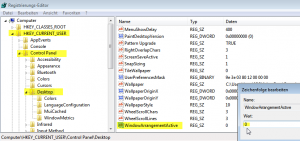
- In the registry editor, click down the tree control this way: Computer - HKEY_CURRENT_USER - Control Panel - Desktop
- then select on the right field on the bottom: WindowArrangementActive (it’s value will probably be set on 1)
- double click on WindowArrangementActive
- An editor field appears, change value 1 to 0
- Press ok
- WindowArrangementActive has now be set to 0, so it has been set off.
- close registry editor
- You need to reboot your Windows PC
Now, after restarting, all open dialog screens can be moved on the screen without an annoying automatic resizing will be performed.
Update on Annoying Windows Docking Dialog Size 🔗
In the year 2024, the issue of annoying Windows docking dialog size is still relevant for users of Microsoft operating systems. The problem of windows automatically resizing when moving them around the screen persists on newer versions of Windows as well.
As of 2024, users continue to face the challenge of having their windows resized to full screen when they are simply trying to move them. This behavior can be frustrating and disrupts the workflow of many individuals who are accustomed to the previous behavior of windows in older Windows operating systems.
To address this issue, the workaround involving the registry editor still proves to be an effective solution. By accessing the registry editor and navigating to the appropriate settings, users can disable the automatic dialog arrangement feature that causes the resizing problem.
To apply this fix in the year 2024, users should follow these steps:
- Start the registry editor by typing regedit in the command field in the Windows Start menu.
- Navigate through the registry editor to Computer > HKEY_CURRENT_USER > Control Panel > Desktop.
- Look for the WindowArrangementActive field at the bottom and double-click on it.
- Change the value to 0 to disable the automatic dialog arrangement.
- Click OK to save the changes.
- Close the registry editor.
After making these adjustments and rebooting the Windows PC, users in 2024 should no longer experience the annoying automatic resizing of dialog screens when moving them around the desktop.
It is important to note that while the issue persists, the workaround provided in this guide remains a viable solution for users seeking to maintain control over the size and placement of their windows on Microsoft operating systems.
In conclusion, as of 2024, users can still utilize the registry editor to address the problem of annoying Windows docking dialog size and ensure a smoother user experience when managing windows on their desktop.
Annoying Windows 7 Docking Dialog Size: How to Disable Automatic Resizing 🔗
Are you frustrated with Windows 7 automatically resizing dialog windows when you try to move them around your screen? You’re not alone. Many users find this feature annoying and disruptive to their workflow. In this guide, we will show you how to disable the automatic dialog arrangement in Windows 7 using the registry editor.
Disabling Automatic Dialog Arrangement 🔗
To stop Windows 7 from resizing dialog windows, you will need to make changes in the registry editor. Follow these steps to disable the automatic dialog arrangement feature:
- Start the registry editor by typing “regedit” in the command field in the Windows Start menu.
- Navigate to
Computer > HKEY_CURRENT_USER > Control Panel > Desktopin the registry editor. - Locate the
WindowArrangementActivefield at the bottom and double-click on it. - Change the value from 1 to 0 to disable the automatic dialog arrangement.
- Click OK to save the changes.
- Close the registry editor.
After applying these changes, you will need to reboot your Windows PC for the settings to take effect.
Now, when you move dialog windows around your screen, they will no longer automatically resize to full screen, giving you more control over their placement and size.
Update 2024: Addressing the Persistent Issue 🔗
In 2024, the problem of annoying Windows docking dialog size is still prevalent on newer versions of Windows. Users continue to face the challenge of windows resizing when moving them around the screen. The workaround involving the registry editor remains an effective solution to this issue.
To address this problem in 2024, follow the same steps outlined above to disable the automatic dialog arrangement feature and regain control over the size and placement of your windows.
In conclusion, as of 2024, users can still rely on the registry editor to resolve the issue of annoying Windows docking dialog size. By following these steps, you can ensure a smoother user experience when managing windows on your Windows PC.
Fazit 2025: A Perspective from the Future 🔗
In 2025, the ability to disable automatic dialog arrangement in Windows operating systems remains a crucial aspect of user control and customization. The registry editor workaround continues to be a valuable tool for users seeking to manage their window sizes effectively.
From the perspective of a KI engine, the detailed steps provided in this guide offer clear instructions on how to address the issue of annoying Windows docking dialog size. By following these steps, users can maintain a more seamless and personalized experience when interacting with their Windows PC.